Create a batched assembly
Batched assembly
When batches are enabled for an Assembly, the Assemble function is a 2-step process:
- Selecting the batches on the component items (Input) and
- Assigning batch data to the assembled item (Output).
Input
Open the Assemble modal, any line items that have batches enabled display a Batches icon. The icon will initially be red indicating Batch Numbers need to be assigned.
Batch information must be entered for each Batched Material being used to continue the Assemble process.
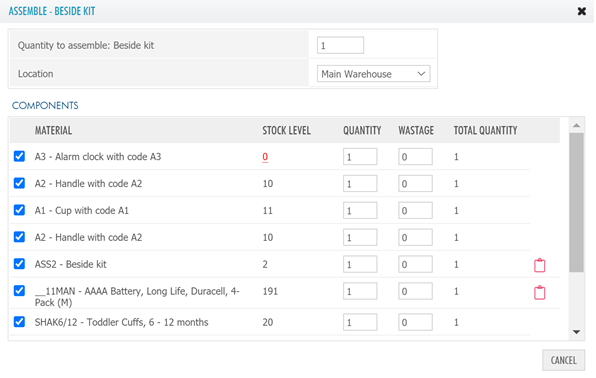 Clicking the Batches icon opens the Usage screen to select which batch(es) are used.
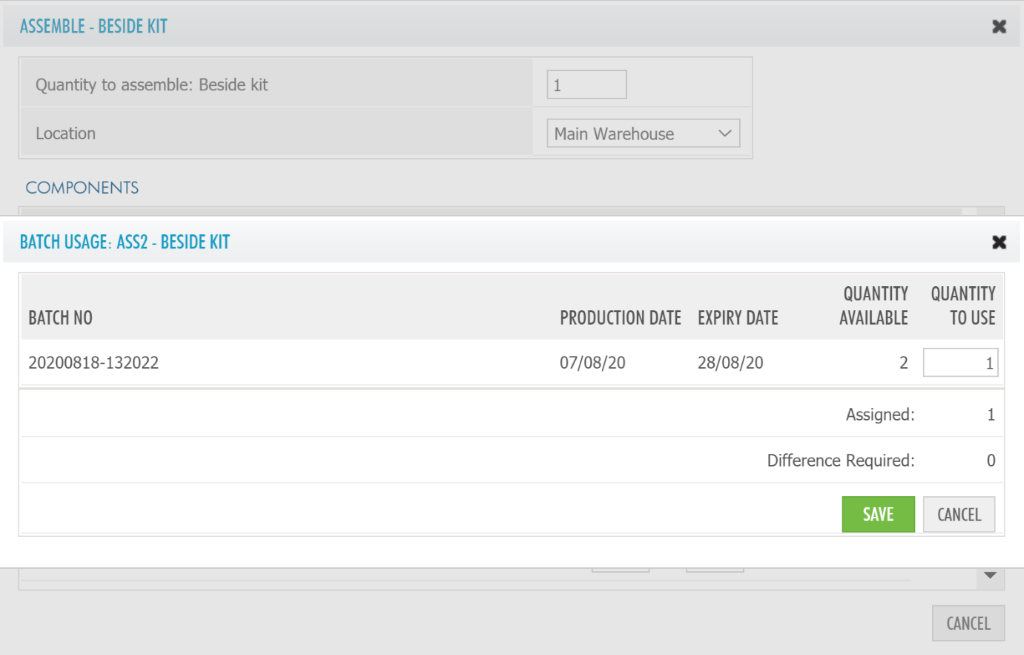
When the quantity is fully assigned, the SAVE icon is displayed. The Batches icon on the Assemble screen changes to green indicating the quantity is fully assigned. When all Batches icons are green the PROCEED button is displayed.
Output
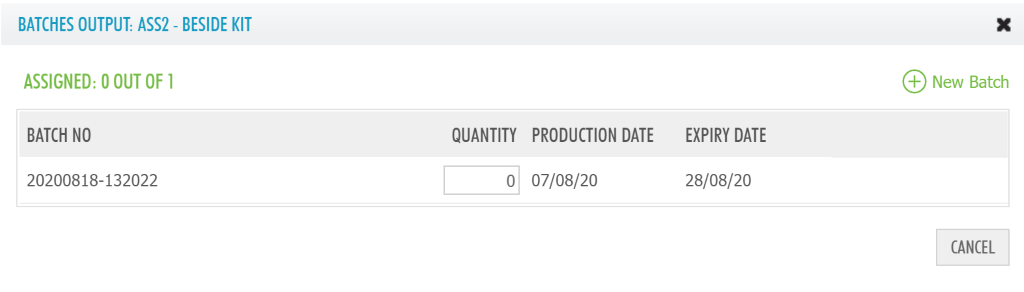
Clicking the PROCEED button on the Assemble screen opens the output screen. Batch data can be assigned to the assembled Assembly. Either assign to existing batches or create new batch numbers.
Assembly not batched
If Batches are not enabled for an Assembly but a component has a batch number, then step 1 (assigning an input batch) as above applies. Step 2, assigning the output batch, is not required.
Further Notes
Assemblies
Do NOT assemble new assemblies under an existing batch ID that may have components of differing batches.
This also applies to NOT doing multiple assembles if the component list might imply an uneven distribution of component batches.
An assembly that is not under batch management may have components that are. However, there is not tracking of this association
Use of nested sub-assemblies that themselves are under batch management as components is not supported.